
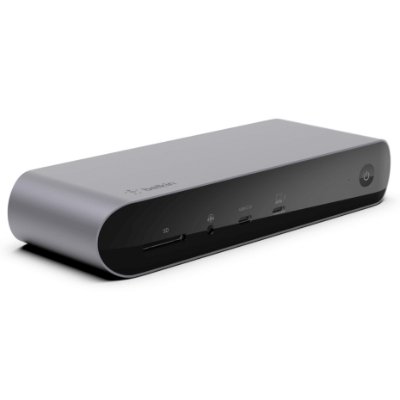
Quick answer:USB-C docks aren’t all the same—they come inthree types. Thunderbolt 4 docks are the fastest (40Gbps, PCIe 32Gbps, dual 4K60), but they only work with TB3/TB4/USB4 hosts; DisplayLink “Universal” docks can drive three displays from any USB-C port, at the cost of installing a driver and using CPU resources; pure hubs are the cheapest, but the number of displays is limited by your computer’s GPU. Buying the second type thinking it’s the first is the most common reason for returns.
- 40Gbps|Thunderbolt 4 bandwidth, with 32Gbps guaranteed for PCIe (twice that of TB3)
- −15W|A 100W pass-through dock uses 15W itself, so only 85W actually reaches the laptop
- 5A|To deliver over 60W, the cable must have an E-Marker chip; otherwise it is limited to 3A
- 60W|Switch 2 TV mode requires 20V/3A; below 60W, dock mode will not be triggered
Three types of docks, based on three completely different principles
| Type | How it works | Maximum | Best for | Our price |
|---|---|---|---|---|
| Thunderbolt 4/3 dock | Uses the PCIe channel for true external expansion | 40Gbps, dual 4K60 or single 8K, 100W power delivery | TB3/TB4/USB4 hosts (MacBook Pro, high-end Windows laptops) | HK$2,220 HK$2,188 |
| DisplayLink Universal dock | Compresses the image using a driver, then transmits it via USB | Drives three 4K60 displays from any USB-C port | Mixed company fleets, older laptops, Chromebooks | HK$1,998 |
| Pure USB-C hub | Relies on the host’s DisplayPort Alt Mode for direct output | The number of displays depends on the host GPU (usually 1–2) | For adding a few USB ports/a card reader/a network port | HK$599 HK$454 HK$338 |
The cost of DisplayLink: three things few people explain clearly
- A driver is required|If your company computer blocks software installation, connecting it will only make it work as a regular USB hub, and the displays will remain blank. Ask IT before buying.
- Uses CPU/GPU resources|The more the image changes, the more resources it consumes. Static documents are barely noticeable, but full-screen games and 4K video can have noticeable latency.
- DRM content may display a black screen|Some protected streaming content cannot play through a virtual display channel. Services like Netflix may require you to use the host’s HDMI directly.
If your computer already has Thunderbolt or USB4,there is no reason to buy DisplayLink——At the same price, buy a TB4 dock for lower latency, no CPU usage, and no driver installation. DisplayLink is a workaround for people whose host only has regular USB-C.
The arithmetic of PD power delivery: why a 100W dock only delivers 85W
The expansion dock itself requires power. Our 11-in-1 dock (INC004) officially states that it supports up to 100W USB-C PD pass-through,but the dock itself consumes 15W, so the actual output to the laptop is 85W; it also requires a power adapter rated at least 65W, otherwise it cannot power the dock properly.
The Thunderbolt 4 dock (INC006) supplies 85W to the laptop. These two figures need to match your computer's charging requirements:
| Your laptop | Actual requirement | Is 85W pass-through enough? |
|---|---|---|
| MacBook Air M series | 30–35W | Yes, with fast charging |
| 13-inch thin-and-light Windows laptop (U-series CPU) | 45–65W | Yes |
| 14/16-inch creator laptop (H-series CPU+discrete GPU) | 90–140W | No, the battery will gradually drain while in use |
| Gaming laptop | 180–330W | Far from enough; a dedicated power adapter is required |
Cables: 60W, 100W, and 240W require three different types of cable
| Power | Voltage × current | Cable requirements |
|---|---|---|
| Up to 60W | 20V×3A | A standard USB-C cable is sufficient |
| 60–100W | 20V×5A | Must use an E-Marker chip-equipped5A cable; otherwise, the protocol will fall back to 3A/60W |
| 100–240W | Up to 48V×5A (PD 3.1 EPR) | An EPR-certified cable, with an updated E-Marker version |
PD 3.0 has a maximum of 100W (20V×5A); PD 3.1 added 28V/36V/48V voltage levels and the EPR protocol, making 240W possible. So if you bought a 240W charger but are only getting 60W, the cable is usually the problem—the charger, cable, and device must all support the same level, and the lowest one determines the actual output.
Switch 2: 54W can charge it, but 60W is required to run TV mode
Nintendo's official statement:An AC power adapter rated 54W or above can be used in any mode. However, TV mode (dock) requires 20V/3A PD negotiation,and a power adapter below 60W cannot trigger dock mode—in real-world testing, a 20W charger could only output around 3W; the game still ran, but no image could be displayed on the TV. The original power adapter is 60W.
So when taking Switch 2 out, your power bank needs to support a 20V output level; having a large capacity alone is not enough. Our Switch 2 charging protection case is a different type of product—a combination of storage and charging, not a dock replacement.
Magnetic wireless charging: both Qi2 and MagSafe support 15W
Qi2 and MagSafe both use magnetic alignment and have a maximum output of 15W; Qi2 is an open standard, while MagSafe is Apple-certified. They can attach to each other, butonly Qi2-compatible Android phones can receive 15W, while other devices fall back to 5–7.5W. Qi2.2 has increased the maximum to around 25W, but both the device and charger must support it.
The difference between our two magnetic power banks is simple: the 5K model includes a stand (for watching videos on your desk), while the slim 10K model fits in your bag. Available in a full range of colors.
Belkin products in stock at our store (verified 2026-11-10, 15 models)
Docking Stations & Hubs
| Model | Positioning | Price |
|---|---|---|
| CONNECT Pro Thunderbolt 4 Docking Station iNC006QCsgY | TB4 flagship dock | HK$2,220 |
| Thunderbolt 3 Dock Pro with 0.8m TB3 Cable | TB3 workstation dock | HK$2,188 |
| Connect Universal USB-C Triple Display Docking Station INC007QCBK | DisplayLink triple display | HK$1,998 |
| CONNECT USB-C 11-in-1 Multiport Dock INC004btSGY | 100W pass-through (actual 85W) | HK$599 |
| Connect USB-C 6-in-1 Multimedia Hub F4U092btSGY | Lightweight for travel | HK$454 |
| Connect USB-C 7-in-1 High-Speed Multimedia Hub (100W) | Mid-range hub with PD | HK$338 |
Charging
| Model | Positioning | Price |
|---|---|---|
| UltraCharge 67W Retractable GaN Wall Charger WCH022myWH | Travel GaN charger with retractable prongs | HK$249 |
| BoostCharge 10K Slim Magnetic Power Bank (Black/Sand/White) | Magnetic 10K | HK$499 HK$499 HK$499 |
| BoostCharge 5K Magnetic Wireless Power Bank with Stand (Pink/Purple) | Magnetic 5K + stand | HK$239 HK$239 |
Others
| Model | Positioning | Price |
|---|---|---|
| Nintendo Switch 2 Charging Protective Case Pro (Sage Green) ENA003qcSE | Storage + charging | HK$749 |
| SoundForm Anywhere True Wireless Earbuds (Black/Off-White) | Entry-level true wireless earbuds | HK$199 HK$199 |
Known issues for macOS users (must read before purchase)
Concerns about the reliability of Belkin docks,are concentrated almost entirely in macOS. The following are specific issues documented by overseas users and official support materials—positive reviews are also included so you can make your own judgment.
| Issue | Specific situation | Possible solution |
|---|---|---|
| Mac Studio restarts | Mac Studio repeatedly restarts after being connected to a TB3 dock | Delete and rebuild the network bond settings |
| MacBook Air M1 not charging | The same issue has been reported by more than one user; some resolved it by switching to a 60W USB-C power adapter | Test with a different power adapter first, then determine whether the dock is faulty |
| MagSafe remains amber | The Mac does not charge after being restarted with the dock connected | Unplug the dock and restart |
| Wired network lost after sleep | “lose ethernet after going to sleep”; the only solution is toRestart the Mac with the dock connected | Disable sleep or switch to Wi-Fi |
| No display output (16-inch MBP 2019) | This is a Thunderbolt driver-layer issue | Update macOS, or use direct HDMI output instead |
| Intel Macs do not support dual monitors | Some users say Belkindoes not clearly indicatethis limitation | Confirm your model and macOS version before purchasing |
| Third monitor does not light up | Belkin officially states:The DisplayLink driver must be installed first | Restart after installing the official driver |
| Dock completely unresponsive | Plug it intoanother Thunderbolt portand it will be recognized | Try another port |
| Cannot get 144Hz | Direct laptop HDMI works normally, but only a lower refresh rate is available through the dock | For high-refresh-rate displays, use direct output or native TB output |
The official recommendation is also:Before docking or undocking, make sure the computer has fully woken from sleep; this can significantly reduce the situations mentioned above.
But the feedback is not entirely negative
To be fair: one long-term review reported that “basic connectivity worked without any issues, printers and scanners worked normally,the wired network was stable, with no disconnections”; a professional user on a music production forum used two audio interfaces plus an HDMI monitor for an extended period without problems; ratings on major retail platforms are around 4.4/5, with the main complaint being the insufficient number of USB-A ports.
So the real conclusion is:If you need toconnect peripherals and wired networking, Belkin performs normally; if you needmultiple displays + macOS + native DisplayPort behavior, this is the combination that attracts the most complaints, so be mentally prepared before buying, or choose a DisplayLink-specific model instead and accept its latency.
The specific costs of DisplayLink (more concrete than simply saying it "uses CPU")
- When the screen is managed by DisplayLink, although it runs at 60Hz,moving the mouse cursor already feels laggy, and the frame rate is unstable
- The dock'sfan runs in all situations, because the built-in chip cannot keep up with video decoding
- Simplymoving the cursorcan cause CPU usage to spike dramatically (documented in Linux desktop issues)
- Essentially, it is a "USB graphics card"—to use the integrated GPU, you must go through Thunderbolt or DP Alt Mode
Frequently Asked Questions
My computer only has standard USB-C (not Thunderbolt). Can I use a TB4 dock?
A TB4 dock can be plugged in, but it will operate in a degraded mode: display output and PCIe functionality will both be limited, and some models only recognize Thunderbolt hosts. In this situation, you should buy a DisplayLink dock marked "Universal" (INC007), which has the lowest host requirements.
Why does a 100W dock only charge at 85W?
The dock itself consumes about 15W during operation, and only the remainder is passed through to the laptop. For faster charging, you can only use the original power adapter directly, or choose a model specified to support 140W or more of power delivery.
Can a DisplayLink dock be connected to a game console?
Not recommended. DisplayLink uses compressed transmission, while game console output requires low-latency direct passthrough. For game consoles, use a hub with HDMI passthrough or connect directly to the TV.
Can one cable output video, charge the device, and provide networking at the same time, or will there be insufficient bandwidth?
Yes. 40Gbps is shared bandwidth: a single 4K60 display already uses approximately 12–14Gbps (and more when uncompressed). Running three 4K60 displays + USB 3.0 + Gigabit Ethernet simultaneously is handled by DisplayLink through compression, while TB4 relies on PCIe allocation. In practice, for three 4K displays, DisplayLink or TB4 is recommended; do not use a pure hub.
Can I use a 45W power adapter with Switch 2?
It can charge, but it cannot trigger TV mode. TV mode requires 20V/3A (60W) PD negotiation, and Nintendo officially recommends 54W or more.
Will a magnetic power bank damage my phone's battery?
Wireless charging is less efficient and generates more heat, and prolonged exposure to high temperatures accelerates battery aging. For everyday use, wired fast charging is recommended; use magnetic charging as a way to top up while out.
Sources and Methodology
Thunderbolt 4 specifications (40Gbps, PCIe 32Gbps, dual 4K or single 8K, 100W, passive cables maintaining 40Gbps up to 2 meters): cross-checked against Intel's official Thunderbolt 4 documentation and multiple technology media sources. USB4 has a 20Gbps version: USB4/Thunderbolt 4 comparison literature. PD 3.0 has a maximum of 100W (20V×5A), while PD 3.1 adds 28V/36V/48V and EPR; power above 100W requires an EPR cable, and 60–100W requires a 5A E-Marker cable: USB-IF PD 3.1 specifications and power design literature. Belkin INC007 DisplayLink with three displays, 85W PD, and 5 USB-A 3.0 ports: Belkin's official product page and support articles. INC004 supports 100W pass-through, the dock consumes 15W, and requires a minimum 65W power adapter: Belkin's official product page and FAQ. Switch 2 can use 54W or more, and TV mode requires 20V/3A: Nintendo's official support page and compatibility testing. Qi2 and MagSafe both support 15W, while Qi2.2 supports approximately 25W: wireless charging standards comparison literature. Prices and inventory: SHOPLINE product API, retrieved on 2026-11-10, covering 15 active products.
DIGIBAL ONLINE Editorial Team|Hong Kong online electronics retailer. Prices are sourced from the official API, with the verification date indicated.
Last proofread: 2026-11-10